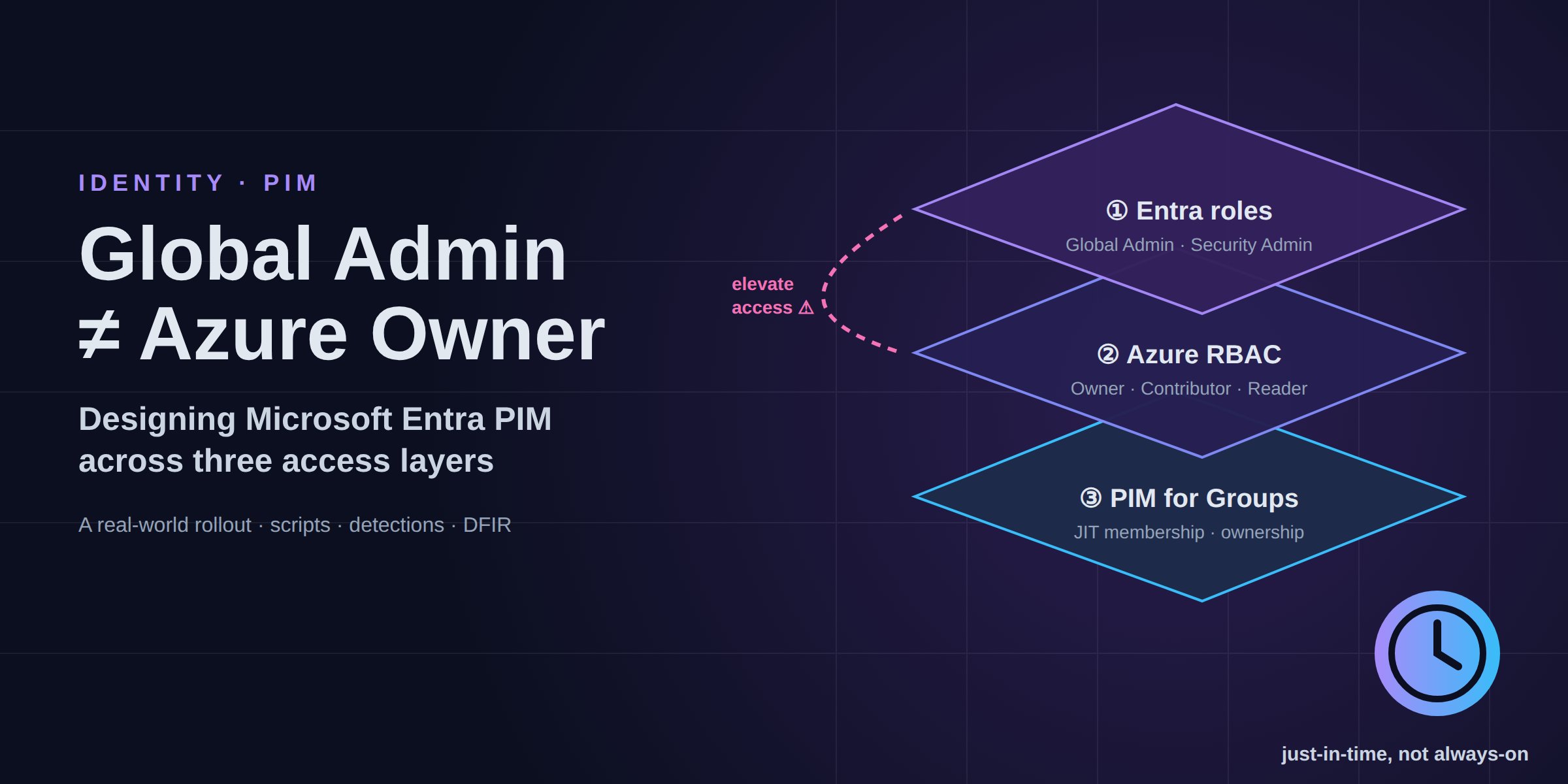
Global Admin Is Not Azure Owner: Designing Microsoft Entra PIM Across Three Access Layers
On this page
A short LinkedIn post by Rishi .P caught my attention this week with a point I wish more teams heard early: Global Administrator and Azure Owner are not the same thing. Before configuring PIM, ask what exactly you’re protecting — Entra administration, Azure resources, or membership of a privileged group. The post promised a real-world PIM scenario next, and that’s exactly where I see organizations stumble.
In incident response I rarely see an attacker “hack” a firewall. I see them walk a privilege path: a helpdesk account that can reset an admin’s password, an app registration that can grant itself roles, a Global Admin who flips one toggle and becomes owner of every Azure subscription. So let’s take that three-layer idea further — the layers, the hidden bridges between them, and a complete rollout with settings, code, detections and the forensic questions behind it.
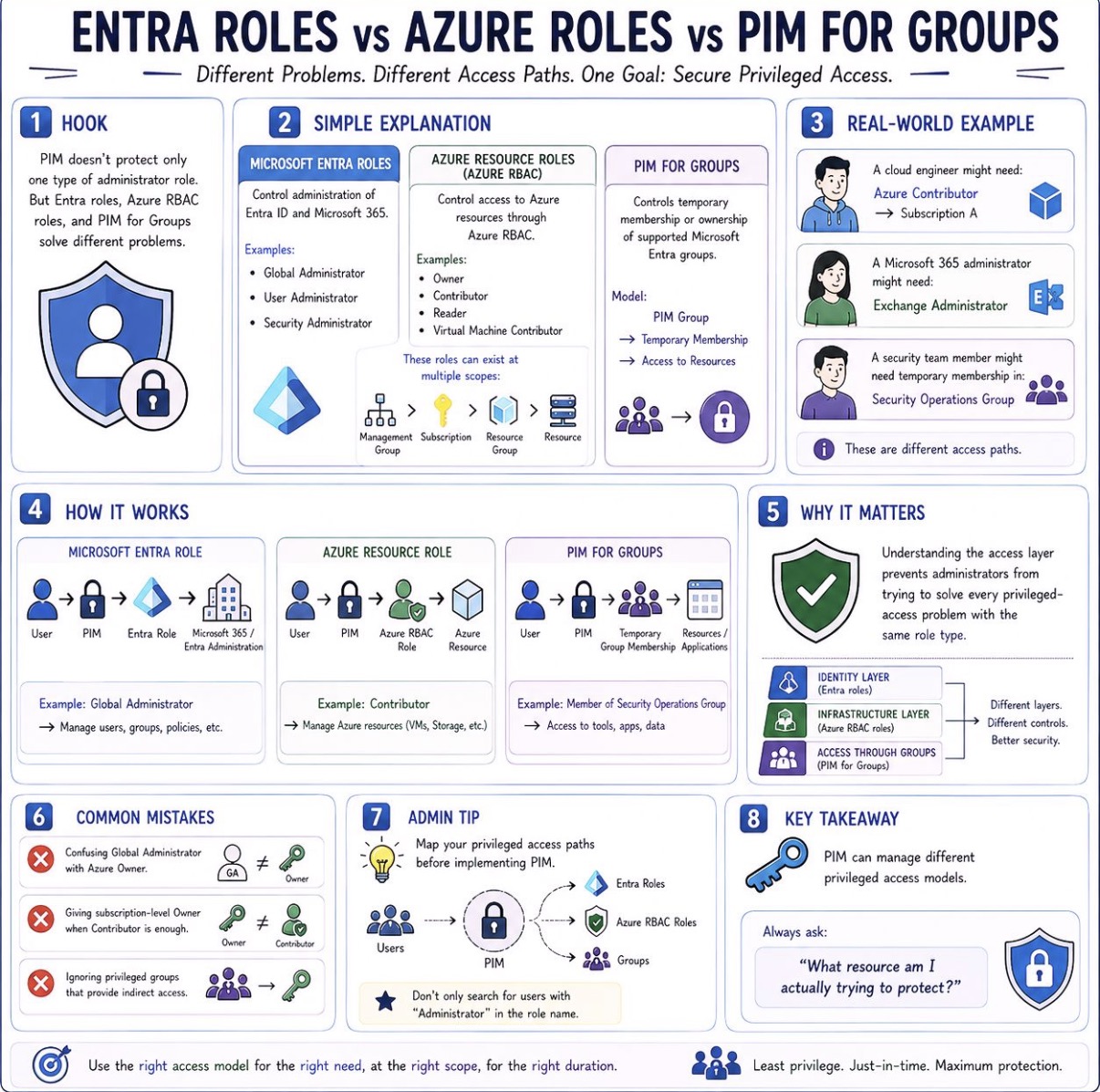
The whole post in one picture: three different access models for three different problems. The sections below unpack each layer, the bridges between them, and how to roll PIM out across all three.
Two permission worlds, and one bridge
Microsoft’s cloud has two separate authorization systems that look similar but don’t share permissions:
- Microsoft Entra roles control the directory and Microsoft 365: users, groups, apps, Conditional Access, Exchange, Intune. Scope: the tenant, or an administrative unit.
- Azure RBAC roles control Azure resources: subscriptions, VMs, storage, Key Vault. Scope: management group → subscription → resource group → resource.
A Global Administrator has no access to Azure resources by default, and a subscription Owner can’t reset a single user’s password. But there is a bridge: a Global Administrator can turn on “Access management for Azure resources” in the Entra properties page and instantly become User Access Administrator at the root scope (/). From there, they can give themselves Owner on every subscription in the tenant. Groups add a third layer, because one group can carry roles in both worlds at the same time:
⚠ Attacker favourite: The elevate-access toggle is a legitimate break-glass feature, for example to recover a subscription nobody owns anymore. It is also a known attacker move: threat actors such as Storm-0501 have used it to jump from a compromised Entra admin into Azure. Treat every use of it as an alert, not a log line.
Layer 1 — Entra roles: who controls identity
These roles decide who can change identities and policies. Not all of them are equal. Some are effectively Global Administrator, because they control something GA depends on:
| Role | Why it’s (near) tier-0 | PIM treatment |
|---|---|---|
| Global Administrator | Everything, including elevate access into Azure | Eligible only, approval, ≤ 2 h, phishing-resistant MFA |
| Privileged Role Administrator | Can assign any role, including GA, and change PIM settings | Same as GA |
| Privileged Authentication Administrator | Can reset passwords and MFA of any user, including GAs | Same as GA |
| Conditional Access Administrator | Can turn off the controls that protect admins | Approval, ≤ 4 h |
| Application / Cloud Application Administrator | Can add credentials to an app that already holds high Graph permissions, and then act as that app | Approval, ≤ 4 h. Review high-privilege apps |
| Hybrid Identity Administrator | Controls sync and federation, the bridge to on-premises | Approval, ≤ 4 h |
| Security Administrator | Manages Defender and security policies | Justification + ticket, ≤ 8 h |
| Intune / Exchange / SharePoint Administrator | Code execution on devices, access to all mail, all files | Justification + ticket, ≤ 8 h. Intune can run code as SYSTEM on every managed device, so treat it as close to tier-0 |
| User / Authentication / Helpdesk Administrator | Password resets for non-admins | Self-activation, ≤ 8 h, or administrative units to limit scope |
Layer 2 — Azure RBAC: who controls resources
In Azure, the scope matters as much as the role. Owner on one resource group is a small risk. Owner on the root management group is the keys to everything:
| Role | Can do | Watch out for |
|---|---|---|
| Owner | Everything, including granting roles | Never standing above the resource group level |
| User Access Administrator | Grant any role to anyone at its scope | Often forgotten after an “elevate access” at / |
| Role Based Access Control Administrator | Grant roles, with conditions (for example “only Reader and Contributor, only to these groups”) | The modern, safer way to delegate role assignment |
| Contributor | Manage everything except access | Still powerful: VM Run Command means code execution as SYSTEM/root, and it can read storage keys |
| Data plane roles (Key Vault Secrets Officer, Storage Blob Data Owner…) | Read and write the data itself | Often missed in reviews, though they protect the most valuable data |
| Reader | Read configuration | Usually safe to keep standing |
Layer 3 — PIM for Groups: access to anything a group can hold
PIM for Groups gives users temporary membership or ownership of a security group or Microsoft 365 group. Whatever that group grants — an Entra role, Azure roles, an app role, Defender or Intune RBAC, a SaaS application through provisioning — becomes just-in-time too.
Key facts from Microsoft’s documentation that shape the design:
- Membership and ownership have separate policies. An owner can change the membership, so treat eligible ownership as at least as sensitive as membership.
- Dynamic groups and groups synced from on-premises can’t be used in PIM for Groups.
- Only role-assignable groups can hold Entra roles, and you can have up to 500 of them. They are also protected: only Global Administrators, Privileged Role Administrators or the group’s owners can manage them, and no lower admin can reset their members’ credentials.
- Require approval for groups that elevate into Entra roles. Otherwise a less-privileged admin who can reset a member’s password could activate on that member’s behalf.
- Activation can trigger SCIM provisioning to a SaaS app within minutes. That makes “JIT admin in Salesforce/ServiceNow/AWS” possible from one place.
Microsoft’s advice: For the Exchange, SharePoint and Purview admin roles, Microsoft recommends using PIM for Entra roles directly instead of PIM for Groups, because permissions that flow through a group activation can take a long time to become effective in those services.
The question to ask first: what am I protecting?
Before touching any PIM setting, I put every privileged request through this simple decision tree:
A real-world scenario: rolling out PIM step by step
Time to make it concrete. Imagine a company with about 5,000 users, one Entra tenant, and around 40 Azure subscriptions under a management group hierarchy. Today they have 11 permanent Global Administrators, a platform team with Owner on every subscription, and a SOC that “sometimes needs admin”. These are the five groups of people we need to serve:
| Persona | What they really need | Layer | Design |
|---|---|---|---|
| Identity team (3 people) | Change CA policies, manage roles, rarely GA | Entra | Eligible GA, Privileged Role Admin and CA Admin. Approval for GA, 2 h max |
| Cloud platform team (6) | Build and fix landing zones | Azure | Eligible Owner at the platform management group with approval; eligible Contributor on workload subscriptions |
| Application teams (~40) | Deploy and troubleshoot their own apps | Azure | Standing Reader; PIM for Groups → Contributor on their resource groups; prod requires approval from the app owner |
| SOC / DFIR responders (8) | Investigate across Entra, Defender, Azure and Intune during incidents | Groups | One role-assignable group PIM-SEC-Responders → Security Operator + Azure Reader at root MG + Intune Read Only Operator + Defender XDR response roles. One activation, everything an investigation needs |
| Helpdesk (25) | Password resets for normal users | Entra | Eligible Helpdesk Administrator scoped to administrative units by region, self-activation 8 h |
| Break-glass (2 accounts) | Recover when everything else fails | Entra | The only permanent GAs. FIDO2 keys in a safe, excluded from CA, every sign-in alerted |
Step 1 — Find the standing privilege. You can’t fix what you can’t see. This read-only script lists every always-on high-impact assignment across Entra roles and Azure RBAC, including anyone left as User Access Administrator at the root scope after an elevate-access:
<#  Find-StandingPrivilege.ps1 - list privileged access that is ALWAYS ON (not just-in-time)
    across Entra roles and Azure RBAC. Read-only.                                          #>
#Requires -Modules Microsoft.Graph.Identity.Governance, Az.Accounts, Az.Resources

# Tier-0 / high-impact Entra roles (built-in role template IDs)
$tier0 = @{
    '62e90394-69f5-4237-9190-012177145e10' = 'Global Administrator'
    'e8611ab8-c189-46e8-94e1-60213ab1f814' = 'Privileged Role Administrator'
    '7be44c8a-adaf-4e2a-84d6-ab2649e08a13' = 'Privileged Authentication Administrator'
    '194ae4cb-b126-40b2-bd5b-6091b380977d' = 'Security Administrator'
    'b1be1c3e-b65d-4f19-8427-f6fa0d97feb9' = 'Conditional Access Administrator'
    '9b895d92-2cd3-44c7-9d02-a6ac2d5ea5c3' = 'Application Administrator'
    '158c047a-c907-4556-b7ef-446551a6b5f7' = 'Cloud Application Administrator'
    '8ac3fc64-6eca-42ea-9e69-59f4c7b60eb2' = 'Hybrid Identity Administrator'
    '3a2c62db-5318-420d-8d74-23affee5d9d5' = 'Intune Administrator'
    '29232cdf-9323-42fd-ade2-1d097af3e4de' = 'Exchange Administrator'
    'fe930be7-5e62-47db-91af-98c3a49a38b1' = 'User Administrator'
    'c4e39bd9-1100-46d3-8c65-fb160da0071f' = 'Authentication Administrator'
}

# ---- Layer 1: Entra roles -------------------------------------------------------------
Connect-MgGraph -Scopes "RoleManagement.Read.Directory","Directory.Read.All" -NoWelcome
$entra = Get-MgRoleManagementDirectoryRoleAssignmentScheduleInstance -All -ExpandProperty "principal" |
    Where-Object { $tier0.ContainsKey($_.RoleDefinitionId) } |
    ForEach-Object {
        [pscustomobject]@{
            Layer     = 'Entra role'
            Role      = $tier0[$_.RoleDefinitionId]
            Scope     = $_.DirectoryScopeId                   # "/" = whole tenant, else an admin unit
            Principal = $_.Principal.AdditionalProperties.userPrincipalName ?? $_.Principal.AdditionalProperties.displayName
            Type      = $_.Principal.AdditionalProperties.'@odata.type' -replace '#microsoft.graph.',''
            Standing  = ($_.AssignmentType -eq 'Assigned' -and -not $_.EndDateTime)   # permanent active
            Ends      = $_.EndDateTime
        }
    }

# ---- Layer 2: Azure RBAC --------------------------------------------------------------
Connect-AzAccount -WarningAction SilentlyContinue | Out-Null
$risky = 'Owner','User Access Administrator','Role Based Access Control Administrator','Contributor'
$azure = foreach ($sub in Get-AzSubscription -WarningAction SilentlyContinue) {
    Set-AzContext -SubscriptionId $sub.Id -WarningAction SilentlyContinue | Out-Null
    Get-AzRoleAssignment -WarningAction SilentlyContinue |
        Where-Object { $_.RoleDefinitionName -in $risky -and $_.ObjectType -in 'User','Group','ServicePrincipal' } |
        ForEach-Object {
            [pscustomobject]@{
                Layer = 'Azure RBAC'; Role = $_.RoleDefinitionName; Scope = $_.Scope
                Principal = $_.SignInName ?? $_.DisplayName; Type = $_.ObjectType
                Standing = $true; Ends = $null      # active RBAC assignment (PIM-activated ones are short-lived)
            }
        }
}
# Anyone with User Access Administrator at the root "/" (often a forgotten "elevate access")
$root = Get-AzRoleAssignment -Scope "/" -RoleDefinitionName "User Access Administrator" -WarningAction SilentlyContinue |
    ForEach-Object { [pscustomobject]@{ Layer='Azure RBAC'; Role='User Access Administrator'; Scope='/ (ROOT)'
                     Principal=$_.SignInName ?? $_.DisplayName; Type=$_.ObjectType; Standing=$true; Ends=$null } }

$all = @($entra) + @($azure) + @($root) | Sort-Object Layer, Role, Principal -Unique
$all | Where-Object Standing | Format-Table Layer, Role, Scope, Principal, Type -AutoSize
$all | Export-Csv .\standing-privilege.csv -NoTypeInformation
"{0} standing privileged assignments found - every one should be eligible (PIM) or a documented break-glass." -f ($all | Where-Object Standing).Count
Timing: Run it during a quiet period. Assignments someone has activated through PIM at that moment also appear as active, but with an end date. The
Standingcolumn only flags assignments with no end date.
Step 2 — Prepare the ground before converting anyone. Four things must exist first, or the rollout will lock people out or be bypassed:
- Two break-glass accounts: cloud-only, FIDO2 keys, excluded from Conditional Access, permanently GA, and an alert on every sign-in.
- Separate admin accounts (
adm-name@), cloud-only, without a mailbox. Admins don’t read email with the account that can delete the tenant. - A Conditional Access authentication context, for example
c1 = "PIM elevation", with a CA policy that requires a phishing-resistant authentication strength and a compliant device (a privileged access workstation if you have one). - Licences: PIM requires Microsoft Entra ID P2 or Entra ID Governance for the users who benefit from it, including approvers and eligible admins.
Step 3 — Define the tiers. One setting profile per tier keeps it understandable:
Step 4 — Apply the settings as code. Clicking through PIM settings for 30 roles is how inconsistencies are born. Every PIM role has a policy made of rules, and Microsoft Graph can set them. This script hardens one tier-0 role and then makes an admin eligible, not active, with an expiry:
<#  Set-PimTier0.ps1 - PIM as code for one Entra role:
    1) harden the activation settings  2) make an admin ELIGIBLE (with an expiry)          #>
param(
    [string]$RoleTemplateId = '62e90394-69f5-4237-9190-012177145e10',   # Global Administrator
    [string]$AdminUpn       = 'adm-yousef@contoso.com',
    [string]$AuthContextId  = 'c1'                                       # CA authentication context "PIM elevation"
)
Connect-MgGraph -Scopes "RoleManagementPolicy.ReadWrite.Directory","RoleManagement.ReadWrite.Directory" -NoWelcome

# 1. Find the PIM policy attached to this role
$policyId = (Get-MgPolicyRoleManagementPolicyAssignment -Filter "scopeId eq '/' and scopeType eq 'DirectoryRole' and roleDefinitionId eq '$RoleTemplateId'").PolicyId

# 2. Activation lasts at most 2 hours
Update-MgPolicyRoleManagementPolicyRule -UnifiedRoleManagementPolicyId $policyId `
    -UnifiedRoleManagementPolicyRuleId 'Expiration_EndUser_Assignment' -BodyParameter @{
        '@odata.type' = '#microsoft.graph.unifiedRoleManagementPolicyExpirationRule'
        id = 'Expiration_EndUser_Assignment'; isExpirationRequired = $true; maximumDuration = 'PT2H'
        target = @{ caller = 'EndUser'; operations = @('All'); level = 'Assignment' }
    }

# 3. Justification + ticket number on every activation
Update-MgPolicyRoleManagementPolicyRule -UnifiedRoleManagementPolicyId $policyId `
    -UnifiedRoleManagementPolicyRuleId 'Enablement_EndUser_Assignment' -BodyParameter @{
        '@odata.type' = '#microsoft.graph.unifiedRoleManagementPolicyEnablementRule'
        id = 'Enablement_EndUser_Assignment'; enabledRules = @('Justification','Ticketing')
        target = @{ caller = 'EndUser'; operations = @('All'); level = 'Assignment' }
    }

# 4. Step-up through Conditional Access (phishing-resistant MFA + compliant device in the CA policy)
Update-MgPolicyRoleManagementPolicyRule -UnifiedRoleManagementPolicyId $policyId `
    -UnifiedRoleManagementPolicyRuleId 'AuthenticationContext_EndUser_Assignment' -BodyParameter @{
        '@odata.type' = '#microsoft.graph.unifiedRoleManagementPolicyAuthenticationContextRule'
        id = 'AuthenticationContext_EndUser_Assignment'; isEnabled = $true; claimValue = $AuthContextId
        target = @{ caller = 'EndUser'; operations = @('All'); level = 'Assignment' }
    }
# (Approval: set it in the portal or with the 'Approval_EndUser_Assignment' rule - approvers are named groups.)

# 5. Eligible - not active - for 180 days, then it must be re-approved
$adminId = (Get-MgUser -UserId $AdminUpn).Id
New-MgRoleManagementDirectoryRoleEligibilityScheduleRequest -Action 'adminAssign' `
    -PrincipalId $adminId -RoleDefinitionId $RoleTemplateId -DirectoryScopeId '/' `
    -Justification 'Tier-0 eligibility, approved in CHG-2041' `
    -ScheduleInfo @{ startDateTime = (Get-Date).ToUniversalTime().ToString('o')
                     expiration    = @{ type = 'afterDuration'; duration = 'P180D' } }
For Azure, keep eligibility in the same Git repository as your landing zone. This Bicep file makes a group eligible for Contributor on a subscription, and the eligibility itself expires after six months:
targetScope = 'subscription'

@description('Object ID of the Entra group that becomes eligible (PIM for Groups recommended)')
param principalId string

@description('Built-in role to make eligible - default: Contributor')
param roleDefinitionGuid string = 'b24988ac-6181-4d38-a0d7-8a2c4aeb6a31'

param startDateTime string = utcNow()

resource eligible 'Microsoft.Authorization/roleEligibilityScheduleRequests@2022-04-01-preview' = {
  name: guid(subscription().id, principalId, roleDefinitionGuid)
  properties: {
    principalId: principalId
    roleDefinitionId: subscriptionResourceId('Microsoft.Authorization/roleDefinitions', roleDefinitionGuid)
    requestType: 'AdminAssign'
    justification: 'Eligible Contributor for the platform team - managed in Git'
    scheduleInfo: {
      startDateTime: startDateTime
      expiration: {
        type: 'AfterDuration'
        duration: 'P180D'          // eligibility itself expires: forces a re-review every 6 months
      }
    }
  }
}
az deployment sub create -l westeurope -f pim-eligible.bicep -p principalId=<group-object-id>
Step 5 — Convert, one tier at a time. Start with tier 2, because it has the most people and the lowest risk, so you learn the friction early. Then tier 1, then tier 0 last, with the identity team in the room. For each person: create the eligible assignment, ask them to activate once while you watch, then remove the permanent assignment. Keep a rollback list for the first week.
Step 6 — Teach the activation habit. Activation should be quick and boring. The portal works, but many admins prefer one command:
<#  Start-PimActivation.ps1 - what an admin runs to activate an eligible Entra role #>
param([string]$RoleTemplateId = '3a2c62db-5318-420d-8d74-23affee5d9d5',   # Intune Administrator
      [string]$Reason = 'INC-7731: remove malicious remediation script', [string]$Hours = '1')

Connect-MgGraph -Scopes "RoleAssignmentSchedule.ReadWrite.Directory" -NoWelcome
$me = (Get-MgContext).Account
$myId = (Get-MgUser -UserId $me).Id

New-MgRoleManagementDirectoryRoleAssignmentScheduleRequest -Action 'selfActivate' `
    -PrincipalId $myId -RoleDefinitionId $RoleTemplateId -DirectoryScopeId '/' `
    -Justification $Reason -TicketInfo @{ ticketNumber = ($Reason -split ':')[0]; ticketSystem = 'ServiceNow' } `
    -ScheduleInfo @{ startDateTime = (Get-Date).ToUniversalTime().ToString('o')
                     expiration    = @{ type = 'afterDuration'; duration = "PT${Hours}H" } }

# Done early? Give it back instead of waiting for expiry:
# New-MgRoleManagementDirectoryRoleAssignmentScheduleRequest -Action 'selfDeactivate' -PrincipalId $myId `
#     -RoleDefinitionId $RoleTemplateId -DirectoryScopeId '/'
This is what happens behind the scenes during one activation, and where each control and each log entry comes from:
Step 7 — Review and expire. Configure access reviews for PIM roles and groups (quarterly for tier 1–2, monthly for tier 0), and let eligibilities expire. “Eligible forever” is the new “permanent admin”: it removes the time limit from the activation, but not from the attack surface.
Detection: watching the privilege paths
PIM writes everything to the Entra audit log. These are the rules I would build first, in Microsoft Sentinel or any SIEM that receives Entra logs:
1. Role assigned outside PIM. After the rollout, this should almost never happen:
AuditLogs
| where TimeGenerated > ago(1d)
| where Category == "RoleManagement"
| where OperationName has "outside of PIM"
| extend Actor  = coalesce(tostring(InitiatedBy.user.userPrincipalName), tostring(InitiatedBy.app.displayName))
| mv-apply tr = TargetResources on (
    summarize Role = take_anyif(tostring(tr.displayName), tostring(tr.type) == "Role"),
              Target = take_anyif(tostring(tr.userPrincipalName), tostring(tr.type) == "User"))
| project TimeGenerated, OperationName, Actor, Role, Target
2. Elevate access into Azure (the bridge).
AuditLogs
| where TimeGenerated > ago(7d)
| where OperationName == "User has elevated their access to User Access Administrator for their Azure Resources"
| project TimeGenerated, Actor = tostring(InitiatedBy.user.userPrincipalName),
          IP = tostring(InitiatedBy.user.ipAddress), Result
3. Tier-0 activation at an unusual time or from a new IP.
let tier0 = dynamic(["Global Administrator", "Privileged Role Administrator", "Privileged Authentication Administrator"]);
AuditLogs
| where TimeGenerated > ago(1d)
| where LoggedByService == "PIM" and OperationName has "PIM activation" and OperationName has "completed"
| mv-apply tr = TargetResources on (summarize Role = take_anyif(tostring(tr.displayName), tostring(tr.type) == "Role"))
| where Role in (tier0)
| extend Actor = tostring(InitiatedBy.user.userPrincipalName), IP = tostring(InitiatedBy.user.ipAddress),
         Hour = datetime_part("hour", TimeGenerated), Reason = tostring(ResultReason)
| where Hour !between (6 .. 20)                       // adjust to your admins' working hours (UTC)
| project TimeGenerated, Actor, Role, IP, Reason
4. Someone changed the PIM rules themselves. An attacker with Privileged Role Administrator will try to remove approval or extend the maximum duration:
AuditLogs
| where TimeGenerated > ago(7d)
| where LoggedByService == "PIM" and OperationName has "role setting"
| project TimeGenerated, OperationName, Actor = tostring(InitiatedBy.user.userPrincipalName),
          Changes = TargetResources[0].modifiedProperties
5. New eligibility for a tier-0 role, or a new owner on a PIM group.
AuditLogs
| where TimeGenerated > ago(7d)
| where LoggedByService == "PIM"
| where OperationName has "eligible" and OperationName has "completed"
| mv-apply tr = TargetResources on (summarize Object = take_anyif(tostring(tr.displayName), tostring(tr.type) in ("Role", "Group")))
| project TimeGenerated, OperationName, Actor = tostring(InitiatedBy.user.userPrincipalName), Object
Schema drift: Exact
OperationNamestrings differ slightly between Entra roles, Azure resources and groups, and Microsoft occasionally renames them. That’s why the rules above match on stable keywords (has "PIM activation",has "eligible"). Run each query over 30 days of your own data before turning it into an alert.
DFIR: questions to answer when a privileged account goes wrong
PIM is not only a prevention control. It is one of the best forensic data sources in the tenant, because it turns “this person is an admin” into precise time windows. When an admin account is suspected, I work through these questions:
| # | Question | Where the answer is |
|---|---|---|
| 1 | Which roles could the account activate, and which did it actually activate? | PIM eligibility and assignment schedules (Graph), AuditLogs (PIM activation events) |
| 2 | When exactly was it privileged? | Activation start → expiry or deactivation events. These windows are your timeline anchors |
| 3 | Who approved it, and with what justification and ticket? | Approval events and ResultReason. A fake ticket number is a strong signal |
| 4 | How did it satisfy the step-up? | SigninLogs: authentication method, device, IP and the authentication context claim at activation time |
| 5 | What did it do inside the window? | Entra AuditLogs, AzureActivity, MicrosoftGraphActivityLogs, the Intune audit log, Defender, filtered to the activation window |
| 6 | Did it change the paths themselves? | PIM setting changes, new eligibilities, group owner changes, elevate access, new app credentials |
| 7 | Did it leave a way back in? | New role-assignable group members, app registrations with credentials, federated domains, CA exclusions |
Question 5 is where PIM really pays off. This query takes every PIM activation of a suspect account and pulls everything that account changed during each window:
let suspect = "adm-someone@contoso.com";
let windows = AuditLogs
    | where TimeGenerated > ago(30d)
    | where LoggedByService == "PIM" and OperationName has "PIM activation" and OperationName has "completed"
    | where tostring(InitiatedBy.user.userPrincipalName) =~ suspect
    | mv-apply tr = TargetResources on (summarize Role = take_anyif(tostring(tr.displayName), tostring(tr.type) == "Role"))
    | project Start = TimeGenerated, End = TimeGenerated + 8h, Role;   // use your max activation time
union
    (AuditLogs | where InitiatedBy.user.userPrincipalName =~ suspect
               | project TimeGenerated, Source = "Entra", Operation = OperationName,
                         Target = tostring(TargetResources[0].displayName)),
    (AzureActivity | where Caller =~ suspect and ActivityStatusValue == "Success"
               | project TimeGenerated, Source = "Azure", Operation = OperationNameValue, Target = _ResourceId)
| extend k = 1
| join kind=inner (windows | extend k = 1) on k          // KQL joins need equality: join on a constant…
| where TimeGenerated between (Start .. End)              // …then keep only events inside a window
| project TimeGenerated, Role, Source, Operation, Target
| order by TimeGenerated asc
Scaling up: The constant-key join is fine for one suspect account over a few weeks. For a whole tenant, bin both sides by hour and join on the bin instead. Microsoft Graph activity logs and the Intune audit log can be added to the
unionthe same way.
If the account is confirmed compromised, contain in this order: remove the eligibility (not only the active assignment, or the attacker simply activates again), revoke sessions, reset credentials and remove attacker-registered MFA methods, then review everything from question 6 and 7. Finally, rotate the break-glass credentials if there is any chance they were exposed.
Common mistakes
| Mistake | Why it hurts | Better | |—|—|—| | “We have PIM” but eligible assignments never expire | Same attack surface as permanent, plus a false sense of security | Eligibility expiry + access reviews | | Approval required, but the approver group contains the requester’s own other account | Self-approval by design | Separate approver groups, no admin-to-admin loops | | GA activation only needs normal MFA | Token theft (AiTM) defeats it | Authentication context with phishing-resistant strength | | Azure Owner at management-group level made eligible “to be safe” | One activation = everything | Smallest scope; RBAC Administrator with conditions | | PIM groups that hold Entra roles allow self-activation | A lower admin can reset a member’s password and activate for them | Role-assignable groups + approval | | Nobody watches elevate access | The quietest path from Entra into Azure | Alert on every use; remove root UAA afterwards | | Service accounts put in PIM | Automation breaks, then someone makes it permanent “temporarily” | Managed / workload identities with least privilege |
Download the scripts
- Find-StandingPrivilege.ps1 — standing privilege across Entra and Azure
- Set-PimTier0.ps1 — PIM settings and eligibility as code
- Start-PimActivation.ps1 — one-command activation
- pim-eligible.bicep — Azure eligibility in Git
Tested how: I parse-checked all the PowerShell, confirmed every cmdlet and parameter exists in the current Microsoft Graph and Az modules, and compiled the Bicep file. Test the write operations in a non-production tenant first. A wrong PIM rule on Global Administrator can lock out your own admins, which is exactly why the break-glass accounts come first.
Follow the paths, not just the roles
Global Administrator and Azure Owner live in different permission worlds, and PIM for Groups lets a single activation reach into both. Good PIM design starts with the original post’s question — what am I protecting? — and then follows the paths between layers: elevate access, role-assignable groups, app credentials and password-reset rights. Convert standing access tier by tier, enforce step-up through an authentication context, let eligibility expire, and alert on anything that happens outside PIM. When something does go wrong, activation windows become the backbone of your timeline. Thanks again to Rishi .P for the spark.
Further reading: Microsoft Entra Privileged Identity Management, PIM for Groups, elevate access for a Global Administrator, and the PIM APIs in Microsoft Graph.